VisLab calendar
After you have been added to the VisLab calendar, you can access it online from the ISR webmail interface (http://webmail.isr.ist.utl.pt), as shown here:

Managing the calendar from Thunderbird
This takes eight simple steps, as follows:
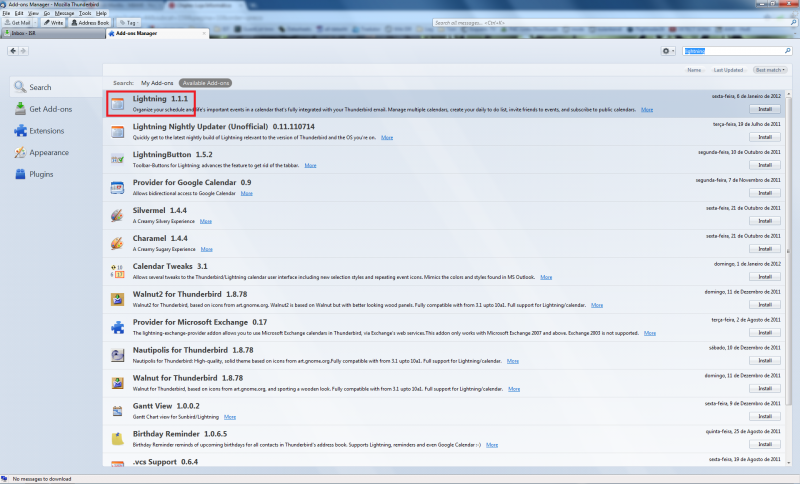
- Open Thunderbird and Install "Lightning" add-on, restart Thunderbird:
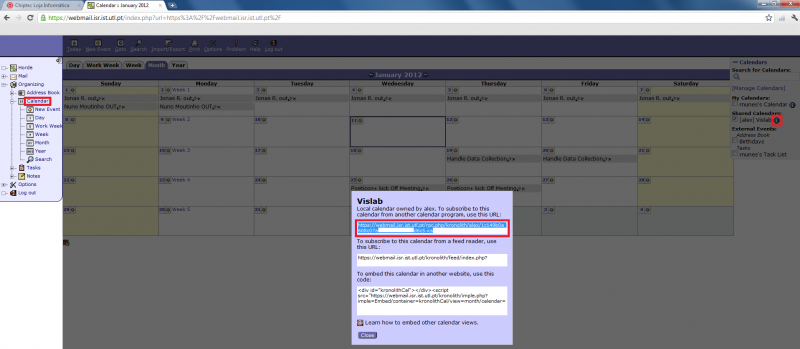
- In the browser, log in to ISR webmail (http://webmail.isr.ist.utl.pt) and open calendar tab on the left. Find on the right side the "i" image on the calendar you want to use "[alex] Vislab" and click on it. Copy the first URL from the window that will pop-up:
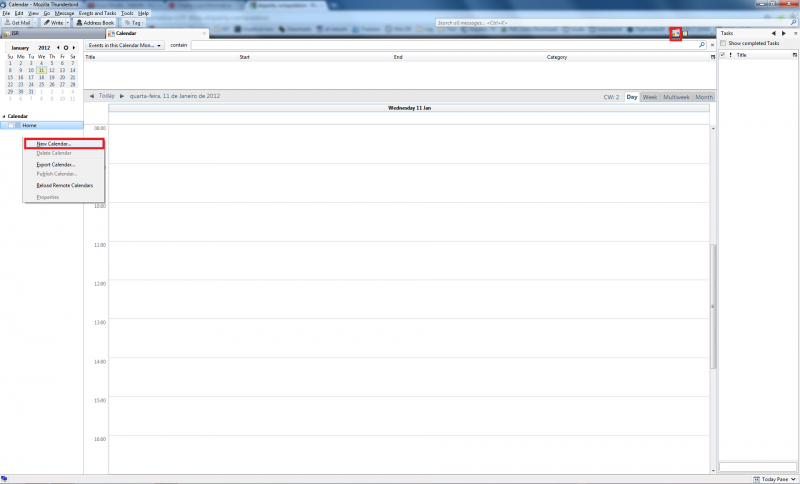
- Back to Thunderbird: open the calendar on the top right corner. Right click and add "New Calendar...":
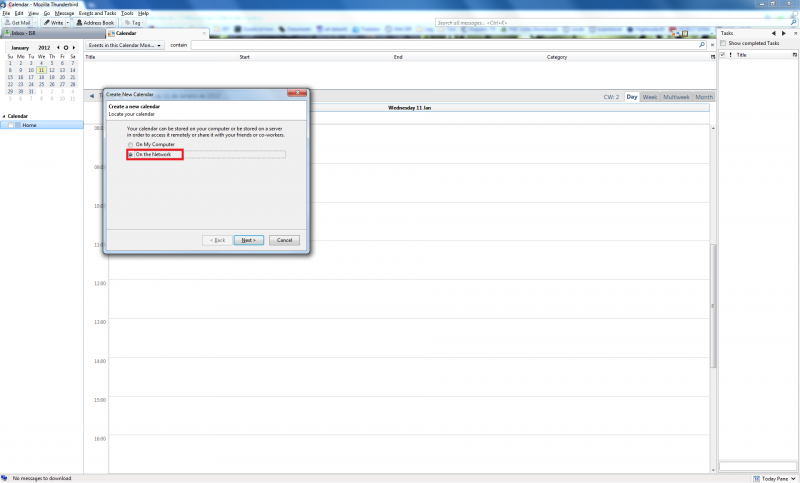
- Choose "On the Network" option:
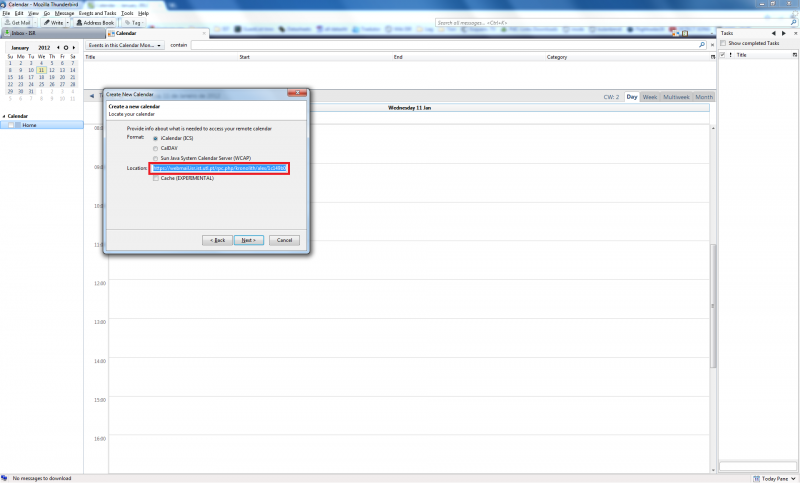
- Paste the link that you've previously copied from webmail to "Location:":
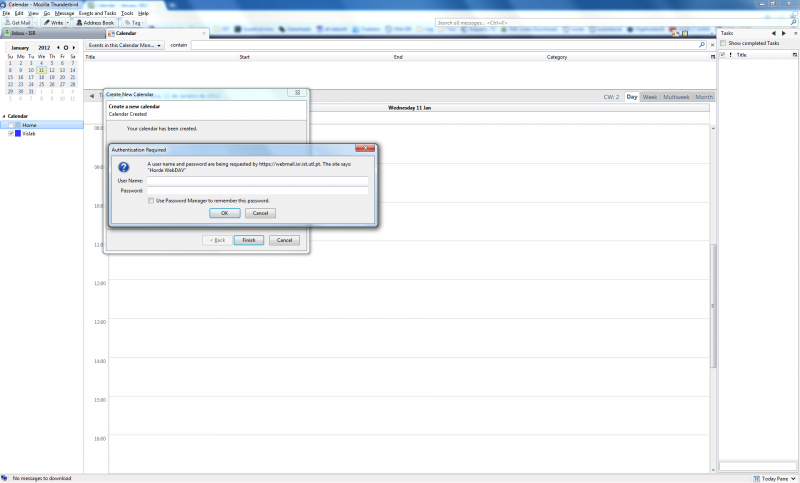
- Log in using your webmail credentials, Finish:
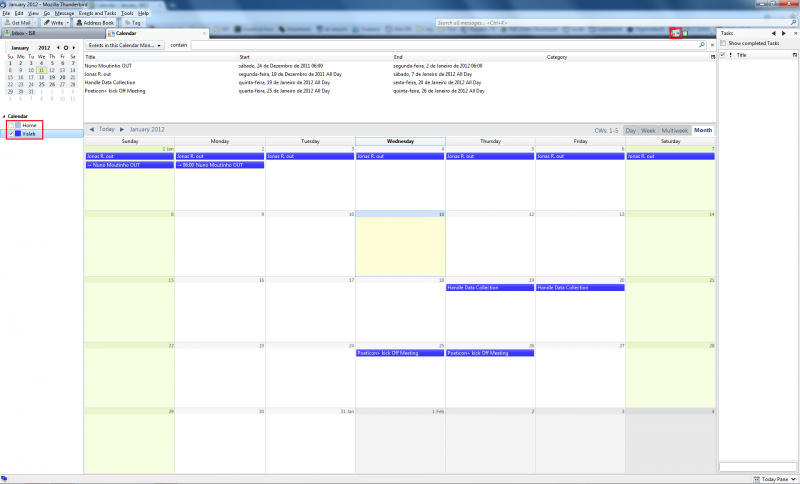
- Now you can open the calendar from the top right corner button and select the calendar you want to enable/disable from the right menu:
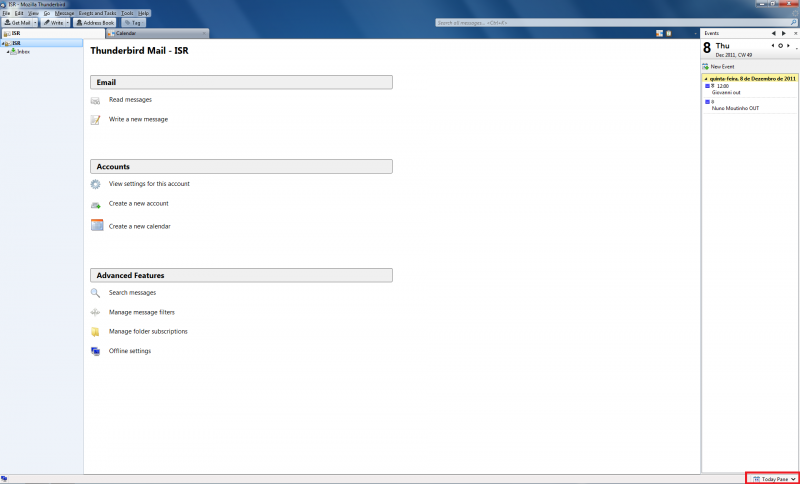
- (Optional) If you prefer a sidebar type, you can enable it on the bottom right corner:


Instructions provided by Ricardo Nunes